
Microsoft Edge
Microsoft CorporationCommunication
4.742.22K Reviews
- Version
- 157.0.4341.53
- Installs
- 100.00M
- Age Rating
- Everyone
Screenshots
Our Review of Microsoft Edge
 Analysis by Appyee
At home, a browser often has to do more than open a page. I might use my phone to check a recipe, someone else might need the same device to look up directions, and later I may want to continue reading on a computer. That everyday mix is where Microsoft Edge: AI Browser can be useful: it combines ordinary browsing with tools for finding, organizing, and revisiting information. I like it most when I treat it as my own browser that can fit into a household routine, rather than as a shared account everyone should use in the same way.
One device, several routines
A realistic household use is planning a meal while another person is researching a repair or comparing travel details. Edge can make those separate web tasks feel less scattered, especially if each person keeps their browsing and saved items within their own account boundaries. I would not assume that a browser automatically separates one person’s activity from another’s: on a shared phone or tablet, it is worth checking which account is signed in before saving bookmarks or using synced browsing information.
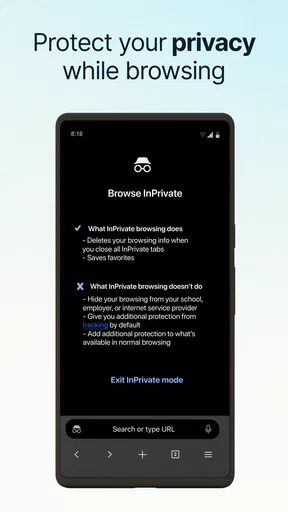
That small habit matters more than it may sound. If I search for a gift on a device that someone else also uses, I do not want my personal browsing choices casually mixed into the next person’s session. I make a point of checking the active account and using a private session when I want a temporary browsing window. InPrivate is useful for reducing what remains in that session’s local browsing history, but I would not treat it as a magic cloak that makes every online activity invisible.
Setting boundaries before syncing
Edge’s syncing is most helpful when I have a clear idea of which devices and account I want connected. If I use a personal Microsoft account on my phone and computer, bookmarks and other browser information can follow me between them. That is convenient when I begin reading on one screen and want to pick up later elsewhere. It is less convenient if I sign into a device that belongs to someone else and forget that I have done so.
Before enabling sync on a shared device, I would decide whether that device is genuinely part of my personal setup or just something the household takes turns using. If it is shared, signing out when I finish and avoiding the addition of personal sync details can prevent confusion later. The practical trade-off is simple: sync saves small bits of time, but it works best when the account boundary is intentional. I would not use one person’s account as a shortcut for giving everyone a common browser history.
Coordinating without turning browsing into a group account
For household coordination, I find a browser most useful as a place to research and then share a clear result, rather than as a communal record of everyone’s activity. I can look up a product, a route, or instructions, then pass along the page or the useful details through whatever communication method we already use. That avoids expecting browser history to serve as a family to-do list, and it keeps personal searches from becoming household announcements.
There is also a good reason to keep saved items purposeful. A pile of bookmarks collected by several people quickly becomes hard to navigate, especially when everyone saves pages with different naming habits. I would keep my own bookmarks for pages I expect to revisit, and share a specific page when another person needs it. This is a modest workflow change, but it makes a browser feel much less cluttered without requiring the whole household to adopt the same habits.
Age, trust, and sensible expectations
Edge is rated for everyone, but that label does not replace an adult’s judgment about how a child uses the web. A browser can open useful learning material and everyday sites, but the age rating alone should not be read as a promise that every page a person might reach is suitable for every child. In a household with younger users, I would set expectations about what they may browse and stay involved in their online routines instead of assuming the app itself settles those questions.
I also think it helps to explain what private browsing does in ordinary terms. It can be useful when someone wants a session that is not added to the usual local browsing history, but it should not be presented as a way to hide activity from every service or network involved. That distinction builds better habits and avoids giving children—or adults—a false sense of privacy. For shared-device trust, clear conversations and signing into the right account matter as much as any browser setting.
Edge is a communication-category app from Microsoft Corporation, though its everyday role is browsing rather than messaging. It is free to download, has an average rating of 4.7 from around 1.5 million ratings, and has passed 100 million installs. The app is suitable for everyone by its age rating, and the current version is 143.0.3650.97. Optional in-app purchases range from $9.99 to $199.99 per item, so I would check what a particular purchase covers before paying; the core choice to use the browser does not require treating those purchases as part of ordinary web browsing.
First Impressions: Sleek and Speedy
Right off the bat, Microsoft Edge: AI Browser impresses with its sleek design. The interface is clean, making navigation a breeze. You know that feeling when you sit in a new car, and everything just feels right? Yeah, it’s like that. Browsing is fast, and I found that pages load quicker compared to some other browsers out there. The app’s minimalistic design focuses on functionality without overwhelming you with too many options.
That easy first impression is valuable on a phone, where a cramped screen can make a crowded browser feel like work. Edge is a practical fit for someone who wants a familiar way to search, open pages, and return to saved information without learning a complicated system. I would still judge speed in the context of my own connection, device, and the pages I visit; one browser cannot make every site load instantly. What I appreciated was that the interface did not make routine browsing feel like a project.
Smart Features to Boost Your Browsing
This browser isn’t just about speed and looks. The AI integration is where it truly shines. It learns from your browsing habits to offer personalized recommendations, which is pretty neat. Imagine your browser understanding your preferences and suggesting articles, news, or even videos that align with your interests. It’s like having a personal assistant that knows what you want before you do.
I would approach personalized suggestions as a starting point, not as a reliable picture of everything worth reading. Recommendations can save time when I want more material on a topic I already follow, but they can also narrow what I see if I let them do all the choosing. A useful habit is to search directly for a question when I need a balanced answer, then use recommendations for casual discovery. That keeps the AI-assisted side convenient without handing it the job of deciding what matters.
Another standout feature is the built-in shopping assistant. As someone who loves a good bargain, I found this feature incredibly useful. It automatically finds the best prices and even applies coupons at checkout. Shopping online has never been so convenient!
For a more careful shopping routine, I would still compare the final checkout total rather than focusing only on a coupon or a displayed deal. A lower listed price may not be the whole story once delivery, product differences, or a seller’s terms are considered. I find the assistant most useful as a prompt to check whether a saving is available, not as a substitute for deciding whether the item is right or whether I trust the shop. That little pause keeps convenience from turning into an impulse purchase.
These tools make Edge appealing to someone who spends a lot of time researching purchases, reading articles, or moving between related pages. They are less compelling if I want a browser that stays as plain as possible and never puts recommendations or shopping help in the foreground. In that case, I would compare it with a more stripped-back browser and decide whether the extra assistance is genuinely useful in my routine.
Security and Privacy: Safe and Sound
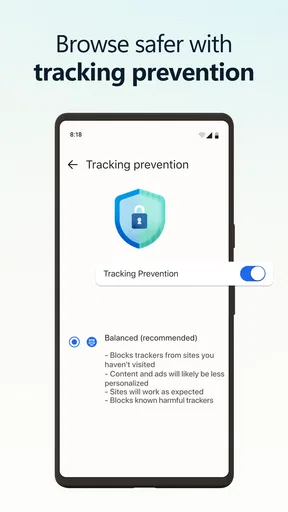
In today’s digital age, privacy is crucial. Microsoft Edge has some solid security features that ensure your data stays private. With tracking prevention and InPrivate browsing, you can surf the web without leaving traces behind. It’s comforting to know that your browsing habits aren’t being monitored or sold to the highest bidder. I really appreciated the attention Microsoft has given to user privacy.
I would keep the practical expectation measured: tracking prevention can help limit some tracking, and InPrivate can be useful for a session I do not want added to ordinary local history, but neither feature should be confused with complete anonymity. Websites and services may still handle information in ways that depend on how I use them. My routine is to avoid entering sensitive details on pages I do not trust and to treat privacy controls as helpful layers rather than guarantees.
That distinction matters especially on a household device. If another person is about to use the phone, I would close any personal pages, check which account is active, and avoid assuming that a private session is the same as logging out of an account. Those are simple steps, but they reduce the chance of leaving the next person with my open tabs or confusing saved information.
Cross-Platform Syncing
If you’re someone who switches between devices often, you’ll love the syncing capabilities. Whether you’re on your phone, tablet, or computer, your bookmarks, history, and settings are seamlessly synced. It’s like your browser follows you, ensuring a consistent experience no matter where you are. As someone who’s constantly on the move, this feature was a game changer for me.
The most useful way I have found to think about sync is as continuity for one person, not as a shared household memory. I can save a page while using my phone and expect my own browser setup to be available when I move to another device, provided I have connected the account I intend to use. But when several people take turns on a tablet, that same continuity can blur boundaries if everyone uses one login. I would rather keep individual browsing separate and share only the pages that are meant for everyone.
Compared with the usual alternatives, Edge makes the most sense if I value Microsoft’s browser ecosystem, want syncing across my devices, or appreciate its AI and shopping assistance. A browser already built into someone’s device may be the easier choice if they want fewer account decisions and are satisfied with the default tools. A privacy-focused alternative may be a better fit for a person whose first priority is minimizing tracking, while a very simple browser may suit someone who dislikes personalized suggestions. I would choose based on the habits I actually have, rather than switching just because one browser has a longer feature list.
Edge is also not the right answer for every shared-device problem. It does not turn a communal phone into separate personal spaces simply because several people use the browser, so I would not rely on it to manage household boundaries by itself. Nor would I recommend enabling sync on a borrowed or public device just to make bookmarks appear temporarily. When I need a one-off search on a device I do not control, keeping the session limited and signing out of any account I used is the more sensible approach.
Overall, Microsoft Edge: AI Browser is a solid choice for anyone looking to enhance their web browsing experience. Its combination of speed, intelligent features, and strong privacy controls makes it a worthy contender in the browser arena. Whether you’re a tech-savvy user or someone just looking for a reliable browser, give it a spin. You might just find it’s the perfect fit for your digital lifestyle.
Who it suits in a household
I would recommend it to someone who wants one browser for everyday searching, reading, shopping research, and continuing personal browsing across devices. It is especially convenient when that person is already comfortable using a Microsoft account and will benefit from keeping bookmarks and settings consistent. The AI-assisted suggestions and shopping tools add value for people who enjoy help discovering related material or checking for deals, as long as they remain willing to make the final call themselves.
I would be more cautious about recommending it to a household that expects one app to automatically separate every family member’s activity, or to someone who does not want an account-linked experience. In those cases, a browser already set up on each person’s own device—or a simpler option with fewer extras—may involve less coordination. My verdict is that Edge works well when the person using it understands the difference between a personal synced browser and a shared screen. Keep those boundaries clear, and its convenience is real; ignore them, and the same convenience can create avoidable confusion.
Privacy and Permissions
See what permissions an app requests and how it handles your data.
- Identity
- find accounts on the device, add or remove accounts
- Contacts
- find accounts on the device, read your contacts
- Location
- approximate location (network-based), precise location (GPS and network-based)
- Photos/Media/Files
- read the contents of your USB storage, modify or delete the contents of your USB storage
- Storage
- read the contents of your USB storage, modify or delete the contents of your USB storage
- Camera
- take pictures and videos
- Microphone
- record audio
- Wi-Fi connection information
- view Wi-Fi connections
- Other
- view network connections, create accounts and set passwords, pair with Bluetooth devices, access Bluetooth settings, control flashlight, full network access, change your audio settings, control Near Field Communication, run at startup, reorder running apps, use accounts on the device, control vibration, prevent device from sleeping, set an alarm, install shortcuts, read Google service configuration
Verdict
Strengths of Microsoft Edge
- Fast and efficient browsing experience.
- Built-in AI features enhance productivity.
- Seamless integration with Microsoft services.
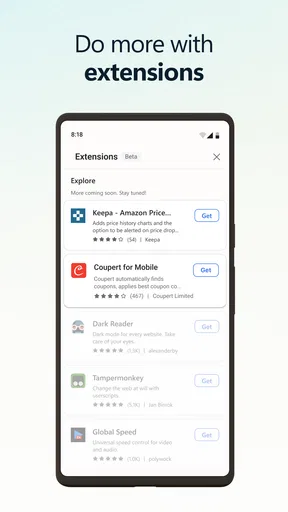
- Customizable with a wide range of extensions.
- Strong privacy and security features.
Limitations of Microsoft Edge
- Can be resource-intensive on older devices.
- Occasional compatibility issues with websites.
- Limited customization compared to other browsers.
- AI features may be overwhelming for some users.
- Requires a Microsoft account for full features.
Other Releases by Microsoft Corporation
View All
Microsoft OneDrive
Productivity4.6

Microsoft OneNote: Save Notes
Productivity4.6

Link to Windows
Productivity4.0

Microsoft PowerPoint
Productivity4.8
Similar Picks in This Category
View All
Google Messages
Google LLC4.6

Gmail
Google LLC4.1

Google Meet
Google LLC4.4

Google Chrome
Google LLC4.1

WhatsApp Messenger
WhatsApp LLC4.6

Carrier Services
Google LLC4.2
Frequently Asked Questions
What features make Microsoft Edge stand out as an AI browser?
Microsoft Edge incorporates AI-driven features such as improved search capabilities, personalized news feeds, and enhanced privacy settings. The integration of AI helps in providing more relevant search results and content recommendations. Additionally, features like Collections and vertical tabs improve productivity by organizing browsing tasks efficiently.
How does Microsoft Edge ensure user privacy and security?
Microsoft Edge offers robust privacy features, including tracking prevention, InPrivate browsing mode, and built-in Microsoft Defender SmartScreen. These features help prevent tracking by websites, ensure browsing data isn’t saved, and protect against phishing and malware attacks, making it a secure choice for privacy-conscious users.
Is Microsoft Edge compatible with extensions from other browsers?
Yes, Microsoft Edge supports a wide range of extensions from the Microsoft Edge Add-ons store. Furthermore, it is also compatible with most Chrome extensions, allowing users to install their favorite tools from the Chrome Web Store, enhancing functionality and user experience.
What are the system requirements for installing Microsoft Edge on Android and iOS devices?
For Android, Microsoft Edge requires a device running Android 4.4 or higher. On iOS, it is compatible with devices running iOS 11.0 or later. Ensuring your device meets these requirements will allow for optimal performance and access to all features provided by the browser.
Does Microsoft Edge offer any tools to enhance productivity?
Yes, Microsoft Edge includes several productivity tools such as Collections, which allows users to gather, organize, and share content easily. The browser also supports vertical tabs, helping users manage multiple tabs more efficiently. Additionally, the built-in PDF reader and Immersive Reader mode aid in maintaining focus and productivity.
